Welcome to Best Ticket Printing!

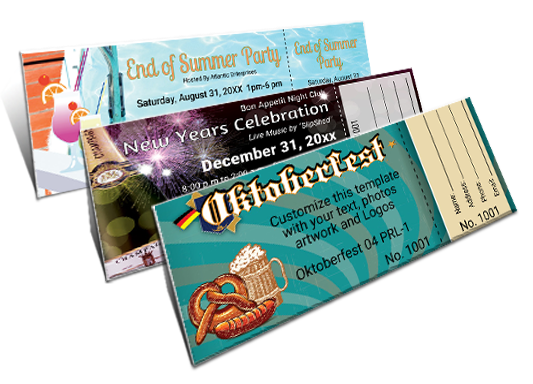
Vibrant, full color tickets are available in a wide array of sizes, papers and styles at BestTicketPrinting.com. Our custom ticket printing delivers high quality full-color tickets at amazingly affordable prices. Our exceptionally fast turn-around means that you will have your tickets on time. Most orders ship out the same business day that the order is received.

Full-color event tickets printing can get people charged up about your event! Our tickets are a great value for large scale concerts, theatrical performances and professional or college sporting events, as well as small scale events such as community plays, school dances or proms, raffles, and fundraisers.

Use the back of your tickets to promote your brand and the event itself, advertise your website and contact information, and display compelling graphics and photos that make people eager to attend your event. Numbering and stubbing tickets is a standard feature. Custom Numbering and Reserved Seating is also available.

We want your event to be a success!

Paper Options

100# Gloss Cover

This is basically the same as the 100# Cover except that it is much heavier and feels more substantial especially when used for the larger ticket sizes. Its thickness is approximately .013”

100# Vellum Cover

This is our Premium Uncoated Ticket stock. It is bright white with a soft vellum surface on both sides. It is a much thicker card stock than the 100# gloss and is great for the larger sized tickets. Its thickness is approximately .013”

The vellum surface softens the intensity of color printing a little, however many images are enhanced by natural look of the paper surface.

80# Gloss Cover

This is again basically the same as the 100# Cover except that it is a little lighter and costs a little less than the 100# gloss Cover. Its thickness is approximately .0075”. The glossy coating enhances the full color printing for a professional looking ticket.

If you are having your tickets booked in set of 10 or more you need to use this stock.

SAVING A FILE FOR PRINT

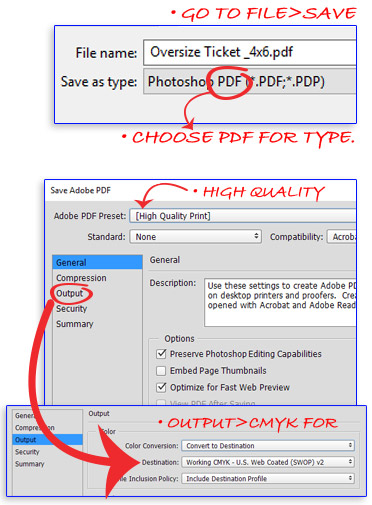
01 Create Bleeds in Adobe Photoshop Photoshop

IMPORTANT: SAVING A FILE FOR PRINT

1. Save your File
  • Go to File > Save As. The Dialogue box will open.
  • Name your File, Choose Photoshop PDF and click Save.
2. The Save Dialogue Box
  • Preset: High Quality Print
  • Go to Output tab, then choose Convert to Desination and make sure it's in "Working CMYK."
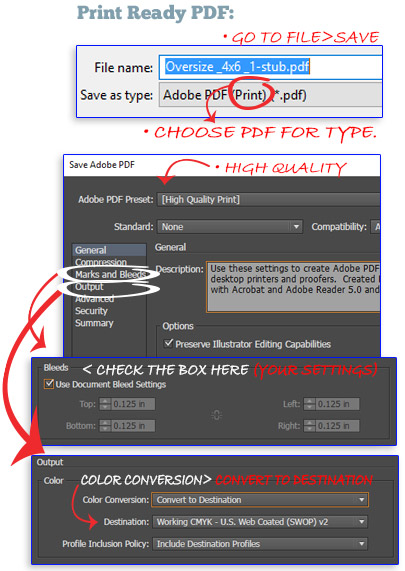
02 Create Bleeds in Adobe Illustrator Illustrator

IMPORTANT: SAVING A FILE FOR PRINT

1. Save your File
  • Create Outlines for type. Select all fonts, Go to Type > Create Outlines.
  • Go to File > Save As. The Dialogue box will open.
  • Name your File, Choose Adobe PDF and click Save.
2. The Save Dialogue Box
  • Preset: High Quality Print
  • Check the box for bleed settings .125
  • Convert to destination, make sure it's in "Working CMYK - (SWOP)."
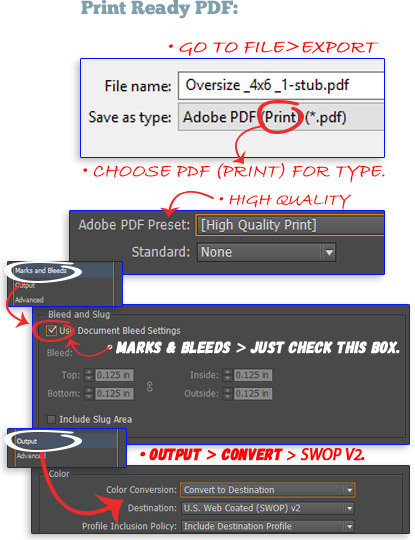
03 Create Bleeds in Adobe InDesign InDesign

IMPORTANT: SAVING A FILE FOR PRINT

1. Save your File
  • Go to File > Export. The Dialogue box will open.
  • Name your File, Choose PDF (print) and click Save.
2. The Save Dialogue Box
  • Preset: High Quality Print
  • Go to Output Tab, then choose Convert to Destination, and make sure it's in "(SWOP)."
  • Go to Marks & Bleed tab, check bux "Use Doc Bleed Settings". (.125)
04 Create print file with QuarkQuark

SAVING A PRINT FILE with QUARK

1. Windows
  • Go to File > Save As. The Dialogue box will open.
  • Name your File, Choose PDF (print) and click Save.
2. Mac
  • Go to File > Save As. The Dialogue box will open.
  • Name your File, Choose PDF (print) and click Save.
05 Create print file with QuarkCorel

SAVING A PRINT FILE with COREL

1. Windows
  • Go to File > Save As. The Dialogue box will open.
  • Name your File, Choose PDF (print) and click Save.
06 Create print file with QuarkWord

SAVING A PRINT FILE with Word

1. Windows: Click the Office Button
  • Go to Save As > Adobe PDF. The Dialogue box will open.
  • Name your File, Set Type as PDF Files and click Save.
2. Mac
  • Go to File > Save As. The Dialogue box will open.
  • Name your File, Set Format to PDF and click Publish.
07 Create print file with QuarkPub

SAVING A PRINT FILE with Publisher

1. Windows: Click the Office Button
  • Go to Save As > Adobe PDF. The Dialogue box will open.
  • Name your File, Set Type as PDF Files and click Save.